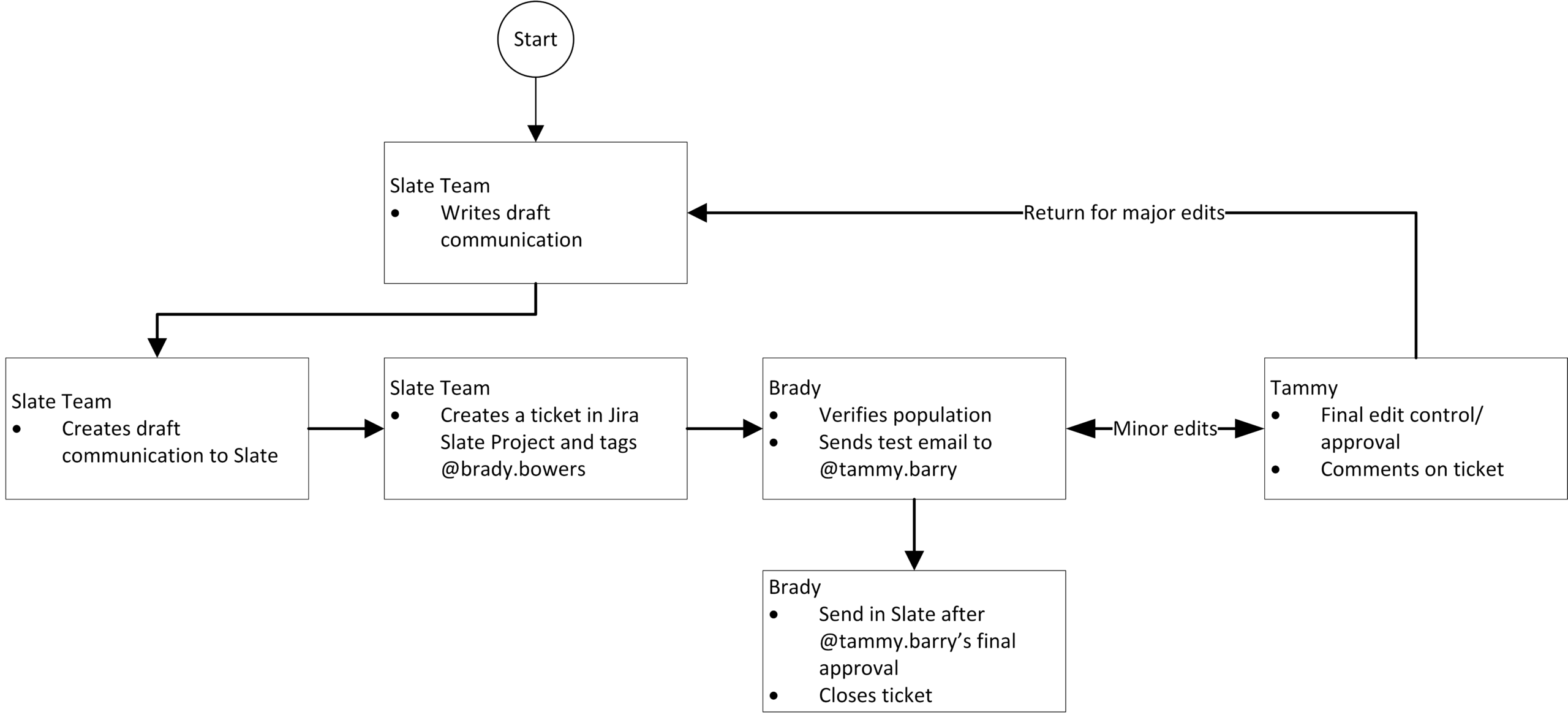
Project Manager: Brady Bowers
Link to Jira Project: Grad School Slate Project
Project Manager: Cindy Hollenbeck
Link to Jira Project: Grad School Web Project
Graduate School Website
Roles & Responsibilities
Communications Director (Cindy):
- Manages the website (i.e., is the Website Project Manager).
- Assigns tasks to the team.
- Connects the team with external constituents.
Vice Provost (Tammy):
- Approves major website changes.
- Ensures the website aligns with the Graduate School goals and visions.
Associate Vice Provost (Greg):
- Works with the Communications Director to prioritize technical tasks.
- Assigns or completes technical tasks.
Content Editors (Cindy and Ali):
- All content-related tasks, such as editing content and fixing typos.
Technical Team (Greg and Carla):
- Manages technical tasks.
Web Team Constituents (Graduate School personnel, current and potential students, as well as Faculty and staff)
- Provide feedback, report issues, and make requests through the Graduate School Jira Service Desk.
Workflow for Changes to Website
- Capture Concerns:
- All team members collect concerns via Jira, email, or phone and create tasks via the Grad School Web Project
- Routinely monitors the website for errors. When errors are small, any team member may repair them. Larger issues are logged via the Grad School Web Project.
- Task Creation & Assignment:
- Content tasks: Managed by the Communications Director.
- Technical tasks: Assigned by Associate Vice Provost.
- issues are logged via the Grad School Web Project in both cases.
- Task Execution:
- Each team works on their assigned tasks.
- All teams update their tasks in the Grad School Web Project.
- Review & Approval:
- Content tasks: Reviewed by the Communications Director.
- Technical tasks: Reviewed by the Associate Vice Provost and Communications Director.
- Major changes: Final approval by the Vice Provost.
- Feedback Loop:
- Tasks get returned with feedback if needed.
- The Vice Provost then must approve via Grad School Web Project.
- Major changes may be deployed to the website only after approval.
- Communication:
- Use the Grad School Web Project for all communication.
- Minimize face-to-face and hallway meetings in favor of commenting, updating, and reviewing projects on Jira.
Transparency & Clarity
Regular Jira Updates:
- Keep tasks in Grad School Web Project updated using comments and workflows. This keeps everyone in the loop.
Feedback Mechanism:
- Encourage feedback from team members in the Grad School Web Project for process improvement.
Project Manager:
Link to Jira Project:
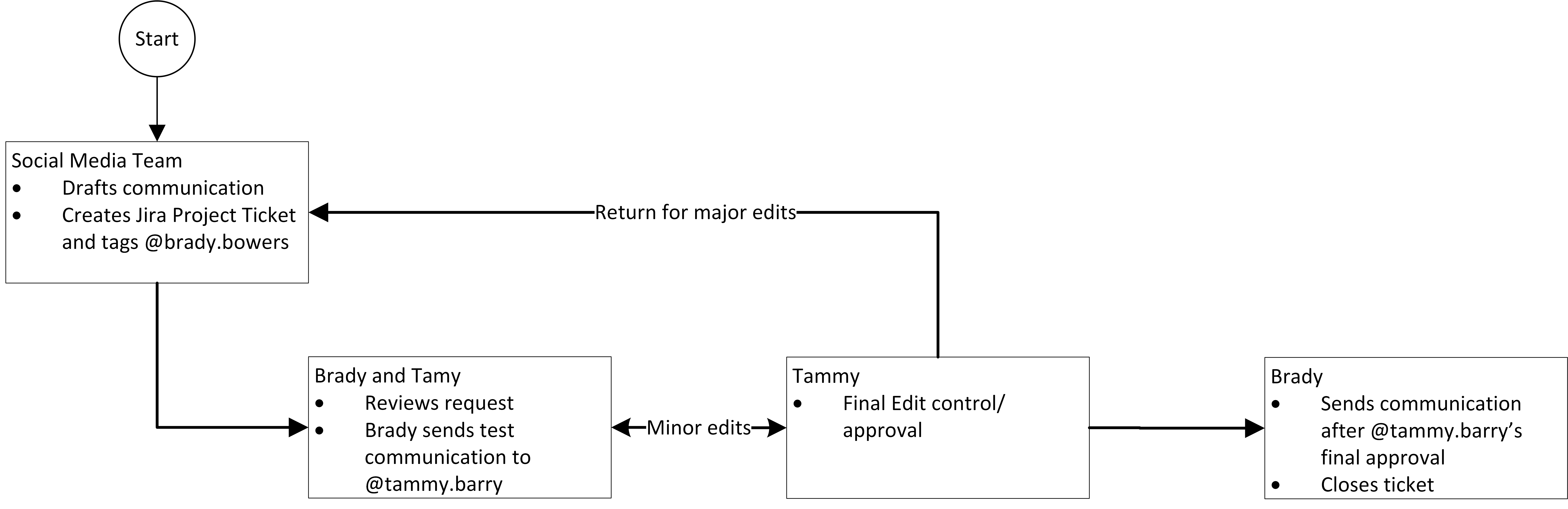
General Jira Project Management Steps
Use Jira Projects to manage the Graduate School Website, Slate, and Social. Please keep all communication and status updates in the appropriate Jira Project. For all projects and issues, please:
- Issue Creation:
- Create an issue for every task that needs completion.
- If the task originated from an email, drag the Outlook message into the ‘Attachment’ area.
- Communication:
- Ensure all work details and communication are documented within the ticket.
- Please keep ticket communication clear and focused on the task.
- When commenting, use the
@function to notify team members of updates or to request assistance.
- Ensure all work details and communication are documented within the ticket.
- Assignment:
- Assign the ticket either to yourself or to the appropriate team member.
- Watchers:
- Add ‘Watchers’ to the ticket for those who need to stay informed.
- Note: To use the directory lookup
@function, the person must be added as a ‘Watcher’. - Always include
@tammy.barryas a Watcher.
- Ticket Status:
- Keep the ticket status as ‘In Progress’ until the issue is fully resolved.
- Handling Large Issues:
- For complex issues that need to be broken down, create sub-issues or new related issues.
- Link these sub-issues or related issues back to the original ticket.
- Ensure the original ticket remains open until all related tasks are completed.
Jira Help
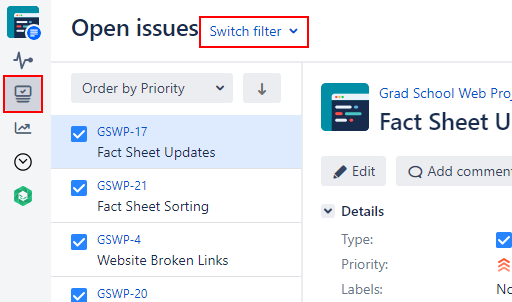
Once in Jira, use the “issues” icon to view and create tickets. You may “switch filter” to move between open and resolved issues.